Open Your Web Browser
On your computer, open Google Chrome or Microsoft Edge. These are the recommended browsers. Other browsers may not work correctly.
View Your Camera Recorder (NVR/DVR) From Your Computer
Log In to AutoNAT
On your computer, open Google Chrome or Microsoft Edge. These are the recommended browsers. Other browsers may not work correctly.
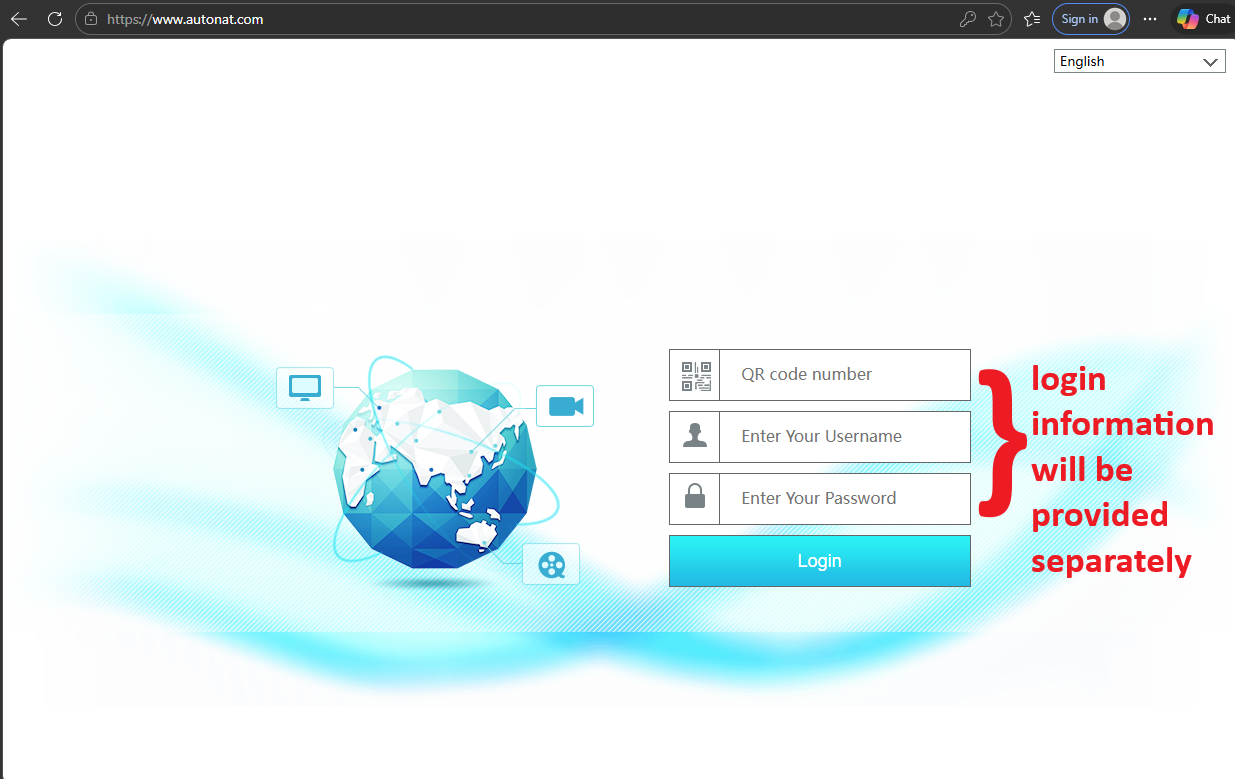
Click on the address bar at the top of the browser, type www.autonat.com and press Enter on your keyboard. A login page will appear.
On the login page, fill in the three fields using the credentials provided to you by your service provider or management:
| Field | What to Enter |
|---|---|
| QR code number | The serial/QR code number from your provided credentials |
| Enter Your Username | The username from your provided credentials |
| Enter Your Password | The password from your provided credentials |
After filling in all three fields, click the "Login" button.
The AutoNAT login page. Fill in all three fields, then click "Login".
Install the Video Plugin (First Time Only)
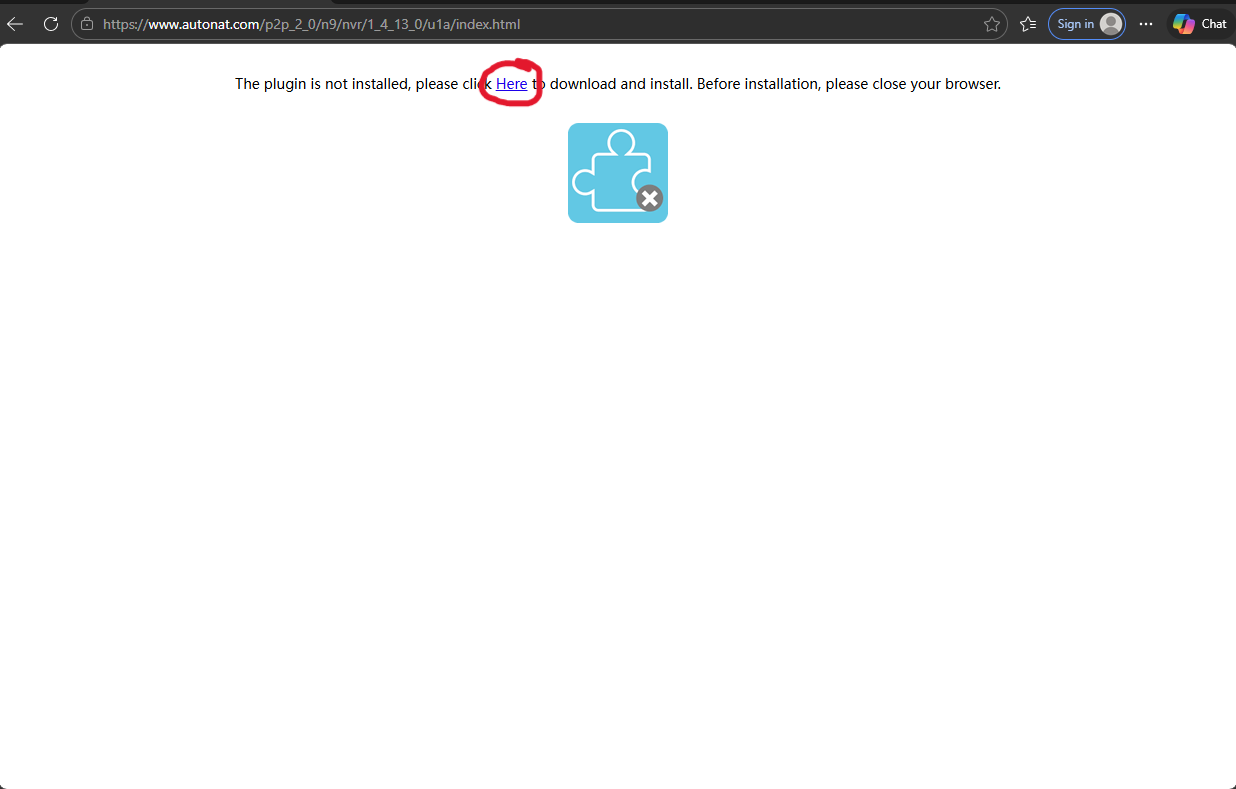
After logging in, you will see a message that says: "The plugin is not installed, please click Here to download and install." Click the blue "Here" link.
Click the "Here" link (circled in red) to download the plugin.
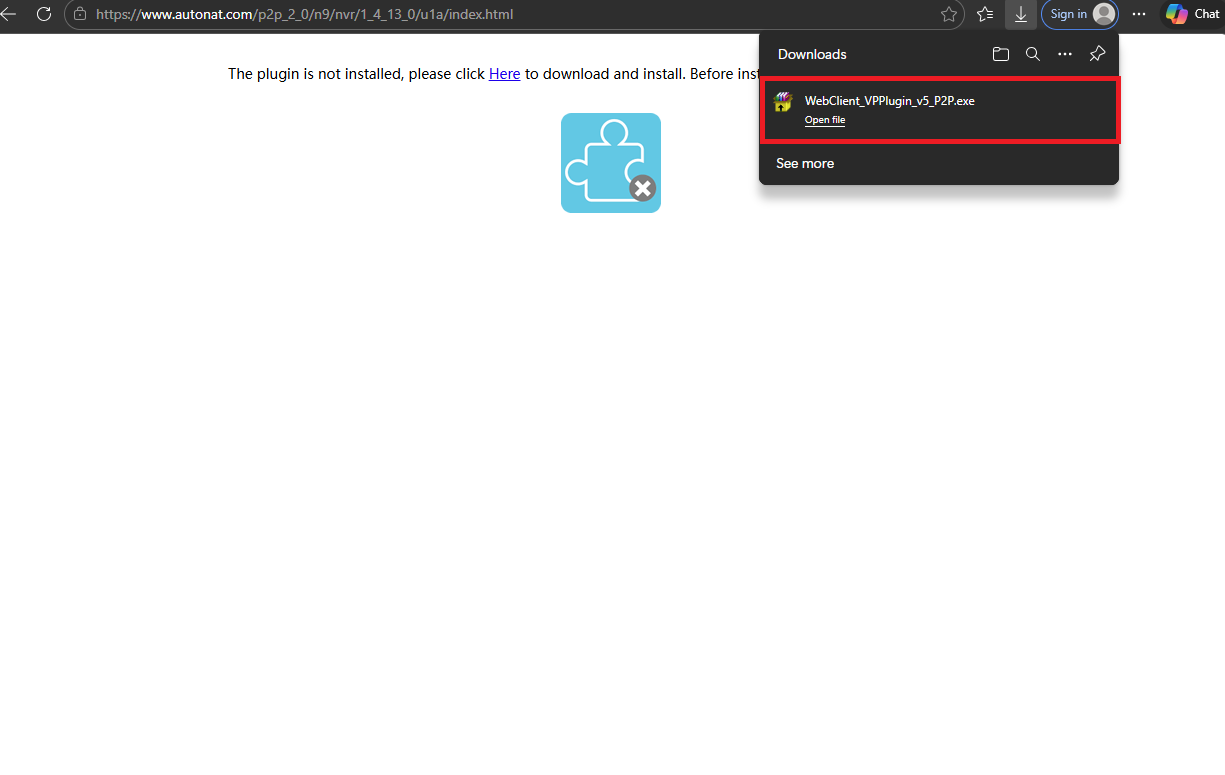
A file called WebClient_VPPlugin_v5_P2P.exe will download. You will see it appear at the top-right of your browser (in the Downloads area). Click "Open file" to run the installer.
The downloaded plugin file. Click "Open file" (highlighted in red) to install it.
After the plugin finishes installing, close your browser completely (close all tabs and windows). Then open it again and go back to www.autonat.com.
Log in again with the same credentials you used in Step 3 (QR code number, username, and password).
Viewing Your Cameras
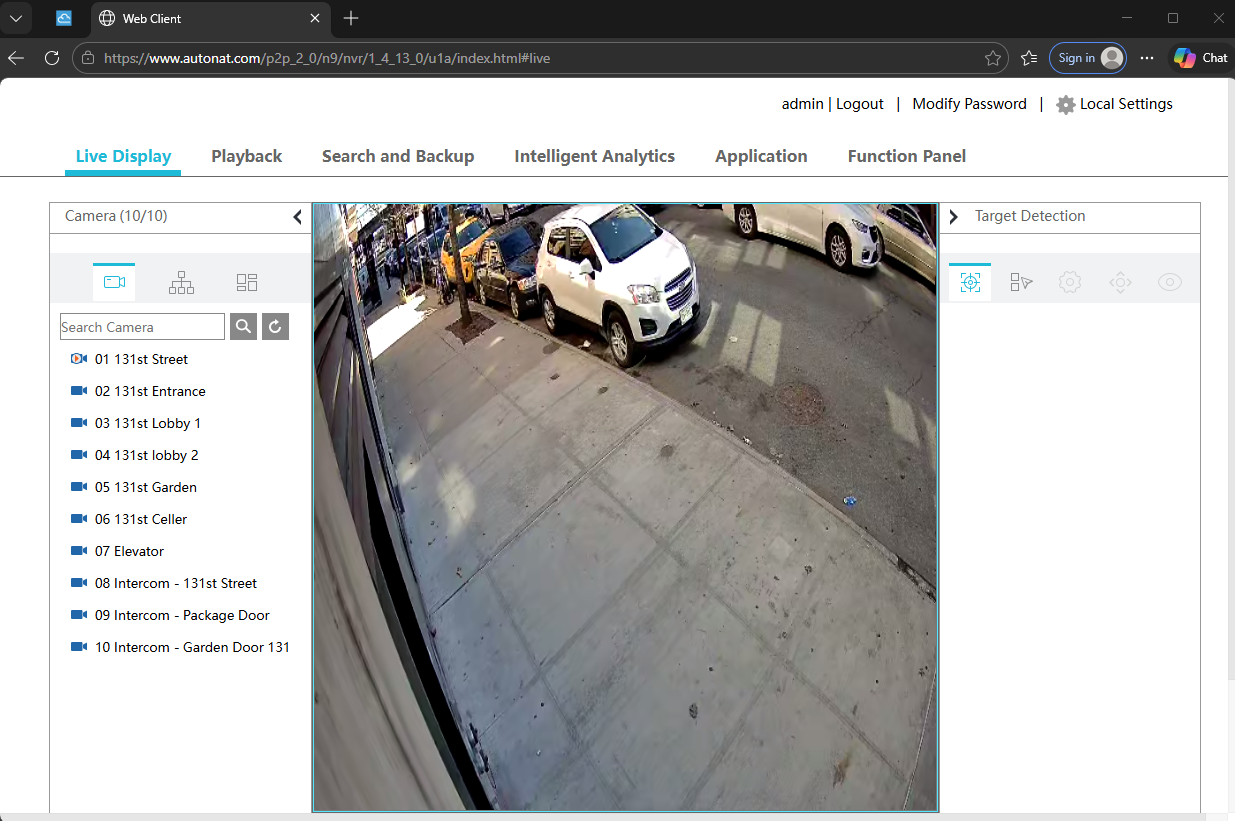
After logging in with the plugin installed, you will see the Live Display screen. Your cameras will be listed on the left side of the screen. Click on any camera name to view its live feed in the center of the screen.
The Live Display screen. Click any camera name on the left to view its feed.
If you have trouble connecting, double-check that:
If it still doesn't work, please contact your camera recorder provider for assistance.